




Spinmama Casino App
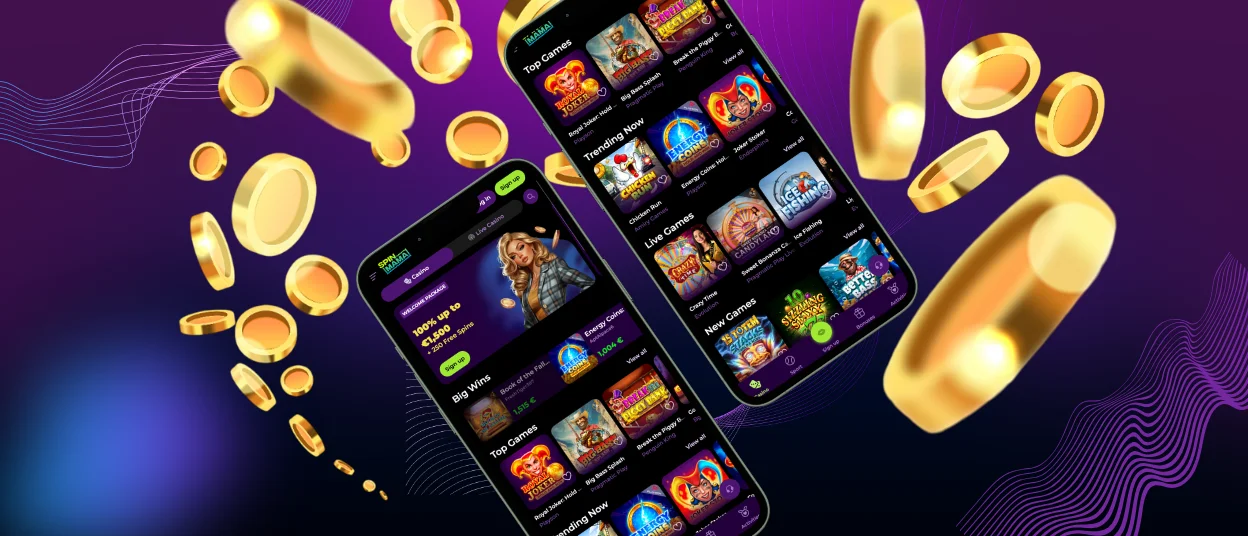
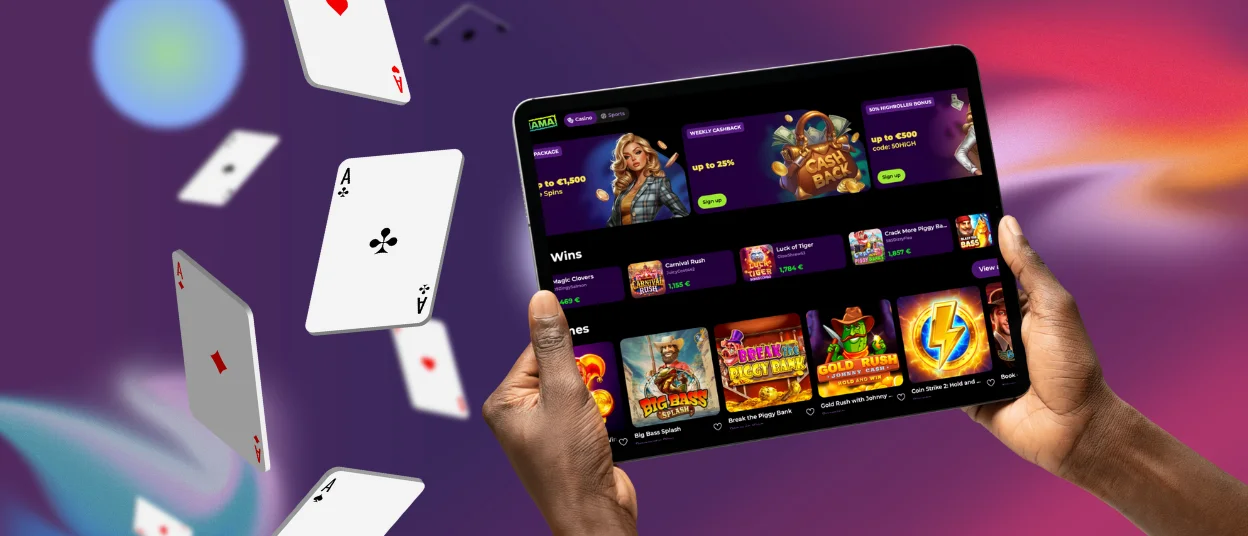
Spinmama app gives you full access to our casino from a phone or tablet through a mobile browser. You use one account across devices, so your balance and settings stay in one place when you switch between mobile and desktop.
At Spinmama, we shape the mobile version for touch control and smaller screens. We keep navigation simple, so you can move between the lobby, your profile, and current offers without extra steps. The interface stays readable, so you do not need to zoom in to tap buttons or open sections. We also keep your favourites and active promotions connected to your profile, which helps you return to the same flow after a break.
For quicker entry, add Spin Mama to your home screen as a shortcut. The icon opens the casino in a focused, app-style window, so you reach the platform in one tap. You also stay on the current version, because the shortcut loads the latest web layout each time you open it.



Key Mobile Features of the Spinmama App
Spinmama app includes mobile-first tools that make the casino easier to use on a small screen. You get faster entry, cleaner navigation, and a layout that supports short sessions without extra taps.
On desktop, you often rely on wide menus and multi-page browsing. On mobile, we simplify how you move around the lobby. We place key sections closer to your thumb, keep tiles readable, and reduce the need to zoom or re-open pages. This helps when you play on the go or when you only have a few minutes.
Spinmama also supports a PWA (Progressive Web App) option. It lets you place an app-style shortcut on your home screen and open the platform in a cleaner mobile view.
Here are the main features that matter specifically on a phone or tablet:
| Mobile feature | How it works in Spinmama | What it gives you |
| PWA home-screen shortcut | Add Spin Mama from your browser menu and launch it from an icon | One-tap entry for short sessions |
| App-style view | The PWA opens in a focused window with fewer browser elements | More space for the lobby and game screen |
| Quick resume | The mobile view keeps your last location ready when you return | Less time spent finding the same section again |
| Touch-first layout | We keep buttons spaced, menus compact, and tiles readable | Fewer wrong taps on smaller screens |
| Swipe-friendly lobby rows | Mobile blocks support quick horizontal browsing | Faster scanning without long scrolling |
| Screen orientation fit | The layout adjusts to portrait or landscape when you rotate the device | Comfortable browsing in the way you hold your phone |
Spinmama App for iOS
Spinmama app for iOS runs in Safari on iPhone and iPad and gives you app-style access without an App Store install. Save it to your Home Screen and open Spinmama in one tap when you want a quick session.
On iOS, Spinmama keeps the mobile view clean and practical. The shortcut opens in a focused window, so you see fewer browser elements and more of the lobby on the screen. You also stay in the same account environment as on desktop, which makes it easier to switch devices without resetting your settings or starting over each time. On iPad, the interface feels roomier, and landscape mode helps when you browse more content at once.
To add the shortcut, open Spinmama in Safari, tap the Share button, choose Add to Home Screen, then tap Add to place the Spin Mama icon. Use Safari instead of an in-app browser for the smoothest result, and log out after play on a shared device.
Spinmama App for Android
Spinmama app for Android works as a browser-based PWA (Progressive Web App). Add it to your home screen and open Spinmama from an icon, so you do not need a Google Play download or any separate APK file.
On Android, we keep the mobile experience light and direct. The PWA opens in an app-style window, which reduces browser clutter and makes the interface easier to use on a small screen. You also use the same Spinmama account as on desktop, so your profile data stays in one place when you switch devices.
The PWA updates through the website, so you always open the current version without manual installs. This format also suits short sessions, because it cuts out repeat steps like searching for the site or reopening multiple tabs.
How to add Spin Mama on Android (PWA shortcut):
- Open Spinmama in Chrome.
- Tap the three-dot menu in the address bar.
- Select Add to Home screen (on some devices it may show Install app).
- Tap Add, then confirm the shortcut name if Chrome asks.
- Find the new icon on your home screen. If it appears in the app drawer instead, press and hold it, then drag it to the place you want.
For safe use, install the shortcut only after you open the official Spinmama website yourself. Avoid third-party pages that offer “app downloads.” If you play on a shared device, log out after the session and remove the shortcut if needed.
Spinmama on Windows and macOS
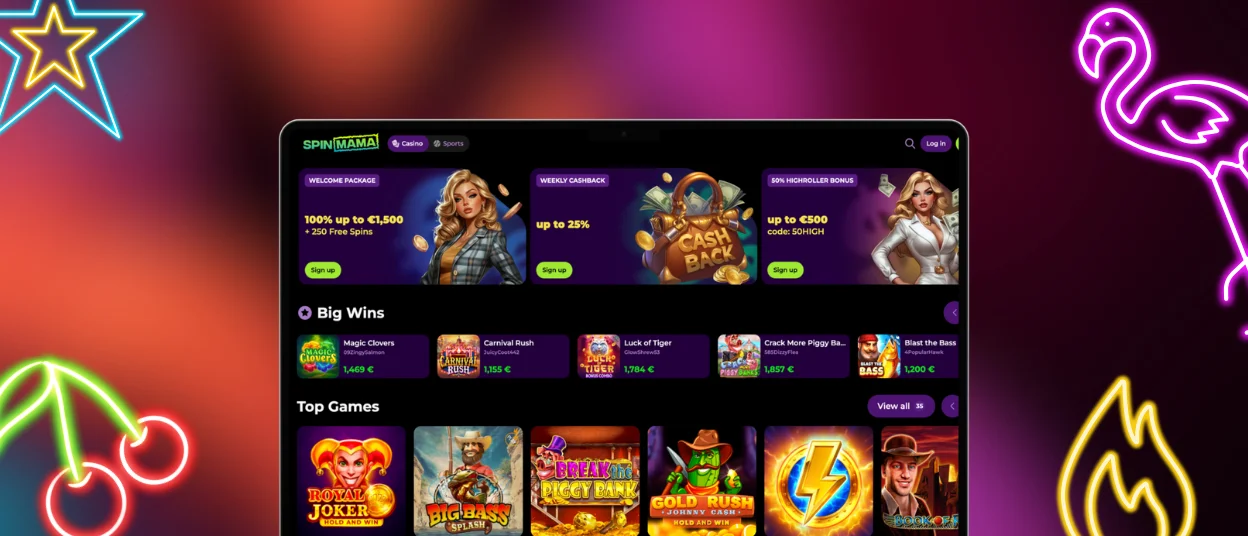
If you prefer a bigger screen, Spinmama works well on both Windows and macOS through your regular desktop browser. The wider layout helps you see more of the lobby at once, compare categories faster, and use search and filters with a mouse without constant scrolling.
Desktop play also feels more practical for longer sessions and account tasks. A keyboard makes sign-in and form fields easier to handle, and a larger display helps when you read game rules, check bonus terms, or follow live streams with clear table details. You can also keep useful pages open in separate tabs, then switch between them without breaking your flow.
For one-click access, Spinmama supports a desktop PWA (Progressive Web App) setup. In browsers like Chrome or Edge, you can choose an Install app or Create shortcut option and place Spin Mama on your desktop, taskbar, or Dock. The shortcut opens in its own window, so you reach the casino directly instead of searching for it in the browser each time.
Keep your browser updated to avoid loading problems. Log out after each session on a shared computer. This helps protect your account and prevents someone else from opening it.
Frequently Asked Questions (FAQs)
Which Android browsers give the most stable experience with Spinmama app?
Chrome usually works best for the Spinmama app on Android. It supports the PWA shortcut and runs the mobile site smoothly. Edge is also a strong option on many devices since it uses the same Chromium engine and often behaves in a similar way. Samsung Internet usually works, but it may place shortcut options in different menus, so setup can feel less direct. Keep your browser updated and avoid “lite” browsers that block scripts or pop-ups.
Why should I open Spinmama in Safari instead of an in-app browser?
In-app browsers have fewer features than Safari. They can hide the Add to Home Screen option. They can also end your session faster. Some pages may not load or confirm correctly.
Safari works more reliably for Spinmama on iOS. It keeps your login and cookies more stable. It also shows the Home Screen shortcut option, so you can save Spin Mama as an icon and open it easily.
Will my balance and account settings stay the same when I switch between phone and desktop?
Spinmama connects your balance and account settings to your profile, not to one device. After you log in, you see the same data on phone and on desktop. If the system notices unusual access, it may ask you to sign in again, but your account information stays the same.
Can I remove the Spinmama shortcut without deleting my account or history?
The Spinmama shortcut works like a quick link, so removing the icon only deletes the entry point on your screen. It does not erase your account, balance, or playing history.
If you remove the shortcut, you can still open Spinmama in your browser and add the icon again at any time. Clearing browser data can sign you out and remove saved site files, but it still does not delete the account itself.
How do I reinstall Spin Mama if I deleted the icon by mistake?
Recreate the Spin Mama icon the same way you added it before, because it comes from your browser, not from an app store. Open Spinmama in your main browser, then use the shortcut option for your device: in Chrome on Android, open the three-dot menu and choose Add to home screen; in Safari on iPhone or iPad, tap Share and select Add to Home Screen. Confirm the name, and the icon appears again.


